A good CAD project starts long before the first part is fully modelled.
It is very easy to open Autodesk Inventor, create a new part and start designing. For a small one-off component that may be perfectly adequate. But once a project grows into multiple parts, assemblies, subassemblies and manufacturing drawings, the way the project was originally structured starts to matter.
When I set up an Inventor project, I want the CAD data to remain understandable throughout the life of the job.
That means thinking about the project file and folder structure, drawing template, title block, styles, component naming, model properties and assembly structure before the project becomes difficult to reorganise.
This article covers the workflow I generally follow and why each part of that setup is useful.
1. Start by Creating an Inventor Project
For a proper Inventor job, one of the first things I set up is the Inventor Project file, or .ipj.
The project file tells Inventor where the project data is located and where it should search for referenced files.
This becomes important very quickly.
An Inventor assembly does not contain independent copies of all the parts inside it. It references the individual component files. Drawings then reference the relevant parts or assemblies.
If those relationships are poorly organised, moving, copying or archiving the job can lead to missing-reference problems.
Autodesk recommends using a dedicated project for real design work rather than relying indefinitely on the default project. The .ipj stores the paths Inventor uses to locate project data. Autodesk Help
For a normal locally managed project, I generally start with a Single User project and establish one clearly defined workspace.
The key idea is simple:
Inventor should have an unambiguous project root from which the rest of the design data can be located.

2. Keep the Project Structure Understandable
I prefer a relatively simple folder structure.
There is no universal folder layout that every engineering company must use, but somebody unfamiliar with the project should be able to open the root directory and understand broadly where things belong.
For example:
Pump Skid Project
│
├── Pump Skid Project.ipj
│
├── CAD
│
├── Issued Drawings
│
├── Reference
└── Supplier Data
For a larger project, the CAD folder may be divided further where there is a genuine reason to do so.
What I try to avoid is creating an unnecessarily complicated hierarchy simply because folders can be created.
The project structure should help locate data, not hide it.
The same applies to Inventor search paths. A clean workspace with properly defined library locations is generally easier to manage than a large collection of unrelated paths.
Autodesk distinguishes between workspace files and library locations in the Inventor project environment.
3. Separate Project Components From Standard Content
A bespoke bracket designed for one machine is project data.
An ISO fastener that may appear in hundreds of unrelated projects is something different.
Inventor's Content Center provides standard components such as fasteners, bearings and structural shapes. Using standard content where appropriate avoids unnecessarily modelling standard parts from scratch.
For frequently reused company-specific components, controlled libraries can also be useful.
The important distinction is between:
what belongs specifically to this design, and
what is standard or reusable engineering content.
Making that distinction early keeps the project cleaner and makes later reuse easier.
4. Establish a Naming Convention Before You Need One
Files called:
Part1.ipt
Part2.ipt
Assembly1.iam
are perfectly valid to Inventor.
They become considerably less useful to a person trying to navigate a large machine.
I therefore try to establish the component-numbering and file-naming convention early.
A simple example could be:
FA-2601-001 - Base Plate.ipt
FA-2601-002 - Motor Bracket.ipt
FA-2601-003 - Drive Shaft.ipt
FA-2601-100 - Drive Assembly.iam
FA-2601-200 - Main Assembly.iam
The exact convention is less important than having one.
A company's numbering system may encode project numbers, equipment numbers, assembly groups or other information. In other systems, the number itself may deliberately carry very little meaning.
Either approach can work.
The important thing is that the identifier remains unique, controlled and consistent.
5. Set Up the Drawing Template Properly
This is one of the areas where spending time upfront pays off later.
Inventor does not require me to maintain an independent drawing template for every sheet size.
Instead, I can maintain a primary drawing template containing the resources and standards I want available whenever a new drawing is created.
An Inventor drawing template can contain:
- Title block definitions
- Border definitions
- Sheet Formats
- Sketch symbols
- Drawing styles
- Drafting standards
- Revision-table settings
- Other drawing resources
Autodesk specifically describes the Drawing Resources area as containing Sheet Formats, title blocks, borders and sketch symbols. Autodesk Help
Sheet Formats are particularly useful
Once a sheet has been configured correctly, I can create a Sheet Format from it.
A Sheet Format stores the formatted sheet definition and can include the required:
- Sheet size
- Orientation
- Border
- Title block
- Drawing-view configuration where required
That means one drawing template can contain, for example:
A4 Portrait
A4 Landscape
A3 Landscape
A2 Landscape
A1 Landscape
A0 Landscape
When I need another sheet, I select the appropriate Sheet Format rather than maintaining six unrelated drawing-template files.
Autodesk describes exactly this workflow: configure the sheet, add the required border and title block, then create a Sheet Format from that configuration. Autodesk Help
This is a much cleaner way of keeping all the drawing standards together.
6. Define the Drawing Standard and Styles Once
One of the main benefits of a drawing template is consistency.
I do not want every drawing to become an independent exercise in deciding:
- Text height
- Dimension appearance
- Arrow size
- Decimal precision
- Centre-line style
- Parts-list formatting
- Line weights
Those decisions belong primarily in the drawing standard and associated styles.
Inventor templates control the default styles and standards used for views and annotations, allowing drawings created from the same template to follow the same visual conventions. Autodesk Help
For work produced to an ISO-based system, I set up the drawing environment accordingly.
If a client has its own drawing standard, that standard takes precedence.
The objective is not to make every engineering company use exactly the same-looking drawing.
It is to make every drawing within a particular documentation system behave consistently.
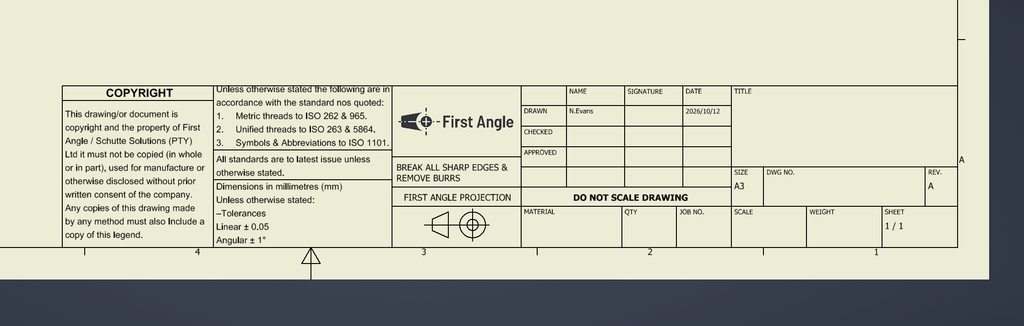
7. Build a Useful Title Block
A good title block is not simply branding in the bottom corner of a sheet.
It is part of the technical-document control system.
Depending on the company and project requirements, a mechanical drawing title block may include information such as:
- Drawing number
- Drawing title
- Revision
- Sheet number
- Scale
- Date
- Drawn by
- Checked by
- Approved by
- Material
- Mass
- Projection symbol
- Company information
Not every drawing requires every possible field.
I would rather maintain a relatively compact title block containing useful, controlled information than create a very large one filled with fields that are routinely left blank.
The exact layout is company-specific, but conventions for technical-document title-block data are covered by ISO 7200.
8. Let iProperties Populate the Drawing Where Possible
Once the title block exists, the next question is where its information comes from.
Inventor's iProperties allow information stored against a part, assembly or drawing to be reused elsewhere.
For example, I might maintain properties for:
- Part number
- Description
- Material
- Designer
- Project
- Stock number
- Mass
Where appropriate, the title block or Parts List can read these properties rather than forcing me to type the same information again.
This is an important principle in CAD data management:
where possible, enter information once and reuse it.
If I change a component material, I would prefer the documentation to obtain that information from the model rather than having an unrelated manually typed material description that I now need to remember to update.
Inventor title blocks can reference document and model properties, while prompted entries can be used where sheet-specific manual information is required.8. Let iProperties Populate the Drawing Where Possible
Once the title block exists, the next question is where its information comes from.
Inventor's iProperties allow information stored against a part, assembly or drawing to be reused elsewhere.
For example, I might maintain properties for:
- Part number
- Description
- Material
- Designer
- Project
- Stock number
- Mass
Where appropriate, the title block or Parts List can read these properties rather than forcing me to type the same information again.
This is an important principle in CAD data management:
where possible, enter information once and reuse it.
If I change a component material, I would prefer the documentation to obtain that information from the model rather than having an unrelated manually typed material description that I now need to remember to update.
Inventor title blocks can reference document and model properties, while prompted entries can be used where sheet-specific manual information is required.Autodesk Help
9. Model Parts With Future Changes in Mind
Once the project environment and drawing system are in place, I can concentrate on the actual mechanical design.
When modelling a part, I try to think about design intent, not only its current shape.
If a component is symmetrical, I try to reflect that symmetry in the model.
If holes form a genuine pattern, I use a pattern.
If a shaft is rotationally symmetric, I model it around an appropriate axis.
If two features must remain related, I try to capture that relationship rather than independently dimensioning everything until the current model happens to look right.
The difference becomes obvious when the design changes.
A model that reflects its design intent often adjusts predictably.
A model built as a sequence of unrelated geometric corrections tends to require considerably more repair.
10. Use the Origin and Work Geometry Intentionally
I also try to make sensible use of Inventor's origin planes and axes.
For example:
- A shaft can be centred around an origin axis.
- A symmetrical plate can be modelled about an origin plane.
- A housing can have its primary mounting or symmetry planes aligned with origin geometry.
- A rotating component can use an origin axis corresponding with its real axis of rotation.
Origin geometry is stable.
Individual model faces can change as features are added or modified.
Referencing meaningful work geometry therefore often creates more robust parts and assemblies.
This becomes particularly useful once those parts are placed in an assembly.
11. Build Assemblies Around a Logical Reference Component
When beginning an assembly, I establish what represents the physical reference for the rest of the machine.
Depending on the design, that could be:
- A base frame
- A machine bed
- A main housing
- A mounting plate
- Another fixed structural component
That component provides the reference from which the rest of the assembly can be positioned.
Inventor allows a component to be grounded at the origin so that it forms a stable assembly reference rather than leaving every component floating freely in space.
From there, I can begin adding the surrounding parts and subassemblies according to their actual mechanical relationships.
12. Think in Degrees of Freedom
Assembly constraints become much easier to understand when I think about what motion a component is supposed to have.
A completely unconstrained rigid component has six degrees of freedom:
- Translation along X
- Translation along Y
- Translation along Z
- Rotation about X
- Rotation about Y
- Rotation about Z
Assembly relationships progressively remove or control those degrees of freedom.
A fixed bracket should ultimately have no movement.
A shaft may need to retain rotation about its axis.
A sliding guide may retain one translational degree of freedom.
The aim is therefore not simply:
“add constraints until the component cannot move.”
The aim is:
“describe how this component is actually located and how it is allowed to behave.”
That produces much more useful assemblies.
13. Use Constraints and Joints According to Mechanical Intent
Inventor provides both assembly Constraints and Joints.
Traditional constraints include relationships such as:
- Mate
- Flush
- Insert
- Angle
- Tangent
These are very effective for defining geometric relationships between components.
Joints approach the problem slightly differently by defining both component position and permitted motion.
A rotational joint, for example, naturally describes a relationship where rotation about a defined axis is intentional.
I do not regard one system as universally superior.
I use whichever relationship communicates the mechanical intent most clearly and gives predictable assembly behaviour.
The important thing is to avoid adding redundant relationships simply because the software allows it.
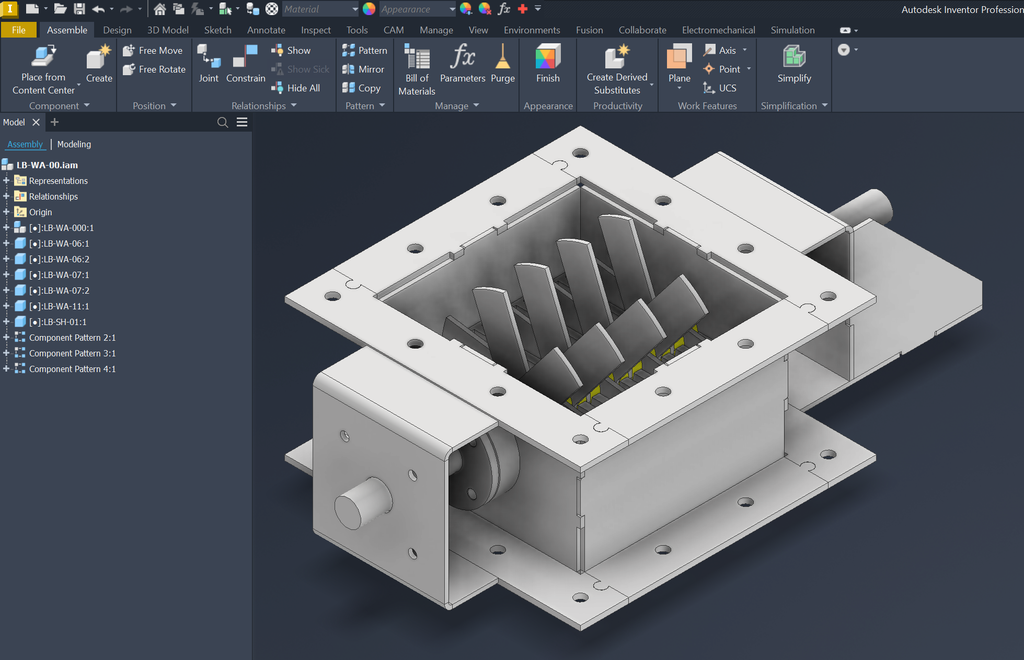
14. Use Subassemblies to Reflect the Real Machine
As an assembly becomes larger, structure becomes important.
If the equipment naturally contains functional groups, I normally want that reflected in the CAD structure.
For example:
Main Machine.iam

├── Base Frame Assembly
├── Drive Assembly
├── Conveyor Assembly
├── Guard Assembly
├── Tensioner Assembly
└── Discharge Assembly
That is considerably easier to work with than hundreds of individual parts sitting directly beneath a single top-level assembly.
It also begins to reflect how the equipment may actually be:
- Manufactured
- Assembled
- Purchased
- Maintained
- Documented
The deciding factor should be engineering and manufacturing logic rather than simply trying to make the Inventor browser shorter.
15. Populate Component Properties While Modelling
I try not to leave all component information until drawing production begins.
As parts are created, it is useful to populate relevant iProperties such as:
- Part number
- Description
- Material
- Designer
- Project information
- Stock number where applicable
That information then becomes available to the wider documentation system.
It can support:
- Drawing title blocks
- The assembly BOM
- Drawing Parts Lists
- Material information
- Component identification
This is another reason project setup and modelling cannot really be separated from drawing production.
The drawing is consuming information created earlier in the design process.
16. Set Up the Assembly BOM Properly
For an assembly project, the Bill of Materials is important because it represents the structured component information behind the assembly.
The BOM can contain information such as:
- Item
- Quantity
- Part number
- Description
- Material
- Other component properties
When an assembly drawing is created, Inventor can use the assembly information to generate a Parts List on the drawing.
That distinction is worth understanding:
The BOM belongs to the assembly data.
The Parts List is the drawing representation of that component information.
Keeping the underlying component properties correct therefore makes assembly documentation considerably easier to maintain.
17. Produce the Drawing From the Model
Once the component or assembly has been modelled correctly, I can create the drawing.
The purpose of the drawing is not simply to prove that a CAD model exists.
It is to communicate enough information for the next person in the engineering process to do their job correctly.
Depending on the type of drawing, that may include:
- Orthographic views
- Isometric views
- Section views
- Detail views
- Dimensions
- Geometric and dimensional tolerances
- Hole and thread callouts
- Weld information
- Surface-finish requirements
- Material information
- General manufacturing notes
- Bill of Materials / Parts List information
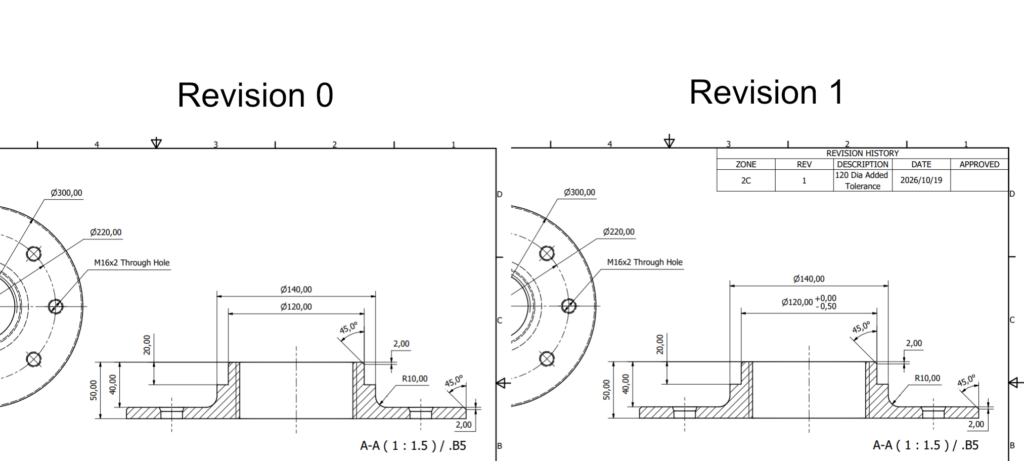
- Revision information
What belongs on the drawing depends on what the drawing is intended to achieve.
A machined-part drawing does not need the same information as an assembly drawing.
A fabrication drawing does not need the same information as an installation layout.
The key question should always be:
What information does the person using this drawing need in order to correctly manufacture, inspect, assemble or install the item?

18. The Value of Setting Up the Project Correctly
None of the individual steps in this workflow are particularly dramatic.
Creating a project file, defining Sheet Formats, setting up a title block and filling in iProperties can initially feel less productive than immediately modelling a machine.
The value becomes apparent later.
When the project is structured properly:
- Parts are easier to identify.
- File references are easier to maintain.
- Assemblies are easier to navigate.
- Component behaviour is more predictable.
- BOM information is easier to generate.
- Drawings remain visually consistent.
- Different sheet sizes retain the same drawing standard.
- Revisions become easier to manage.
- Another designer has a much better chance of understanding the project.
Most importantly, the models and drawings become part of a coherent engineering dataset rather than a collection of unrelated CAD files.
My Typical Inventor Workflow
If I reduce the entire process to a practical sequence, it looks something like this:
- Create the project directory and Inventor
.ipj. - Establish the project workspace and required library locations.
- Confirm the component and drawing-numbering convention.
- Use the controlled Inventor drawing template containing the required drawing resources and Sheet Formats.
- Confirm the drafting standard, title block and styles.
- Model parts with their design intent and origin geometry in mind.
- Populate important iProperties while modelling.
- Establish a logical base component for the assembly.
- Build assembly relationships according to actual mechanical behaviour.
- Divide larger machines into meaningful subassemblies.
- Check component properties and assembly BOM structure.
- Generate manufacturing and assembly drawings from the completed model data.
- Review the final drawing package as a complete engineering deliverable before issue.
It does take slightly longer than simply opening a blank part and immediately starting to sketch.
On a substantial mechanical-design project, I consider that setup time well spent.
The goal is not to create additional administration.
It is to build the project in such a way that the CAD system, models and engineering drawings remain useful as the design develops.
Good CAD Is About More Than Geometry
A well-modelled component is important, but producing good engineering documentation requires more than getting the geometry right.
The project needs structure.
The model needs design intent.
The assembly needs meaningful relationships.
The component information needs to be controlled.
And the drawing needs to communicate the design clearly to somebody who may never have been involved in creating the model.
When those elements are considered together from the beginning, Inventor becomes much more than a 3D modelling package.
It becomes the framework through which the design progresses from an individual component, to an assembly, to the information eventually used to manufacture it.